Circular Layout Reveal cluster structures and partitioned groups through ring-based arrangements
The circular layout is designed to highlight the natural clustering within a network. By partitioning nodes into groups and arranging them on circles or rings, it makes complex interconnections and community structures immediately visible.
Explore how to visualize partitioned data, understand the underlying clustering algorithms, and customize the layout for applications ranging from social networks to infrastructure analysis.

What is a circular layout?
A circular layout organizes a graph by identifying clusters (groups of highly connected nodes) and placing each group on its own circle. This approach is particularly powerful for non-hierarchical networks where the goal is to show "who belongs with whom" rather than a top-down flow.
- Automatic identification of natural clusters in the data.
- Arranging nodes of a cluster on a shared ring or circle.
- Minimizing edge crossings both within and between circles.
- Balancing the layout to emphasize connections between different groups.
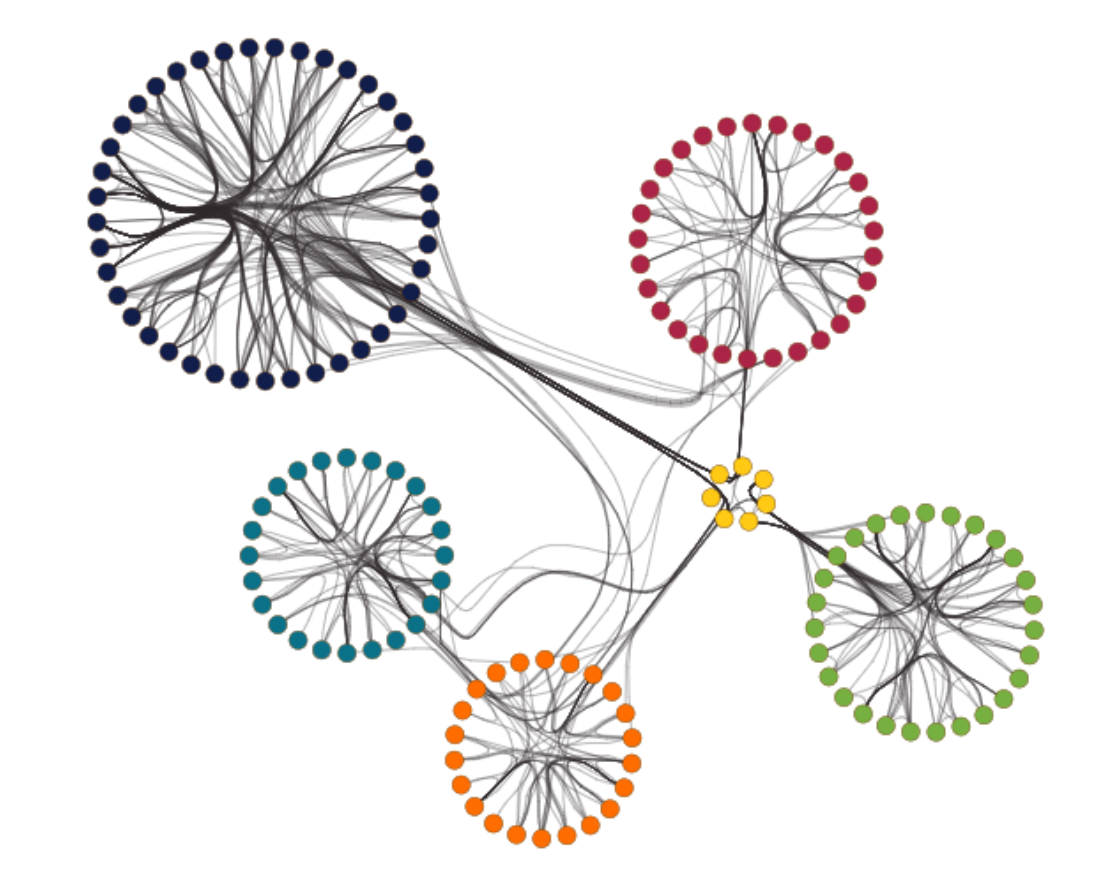
The algorithm works in two main steps: First, it partitions the graph into clusters. Second, it calculates the optimal order of nodes on each circle to ensure the resulting diagram is clean and easy to read. This makes it a "best of both worlds" solution for networks that are too complex for a simple organic layout but don't have a tree-like hierarchy.
Build your own circular visualization
Whether you are analyzing community structures in social media or visualizing segments in a power grid, yFiles' circular layout provides the tools to transform raw data into clear, clustered diagrams.
The layout is highly configurable: choose between different clustering strategies, control the sizing of rings, and decide how edges between clusters should be routed to maintain maximum clarity.
Start building your circular network application today—for free!


Thank you!
Your message has been sent.
We'll get back to you as soon as possible.
Use cases Practical applications of yFiles' circular layout
Circular layouts are the go-to choice for networks where grouping is more important than direction. They help users identify "islands" of information and the bridges that connect them.
Social network analysis (SNA)
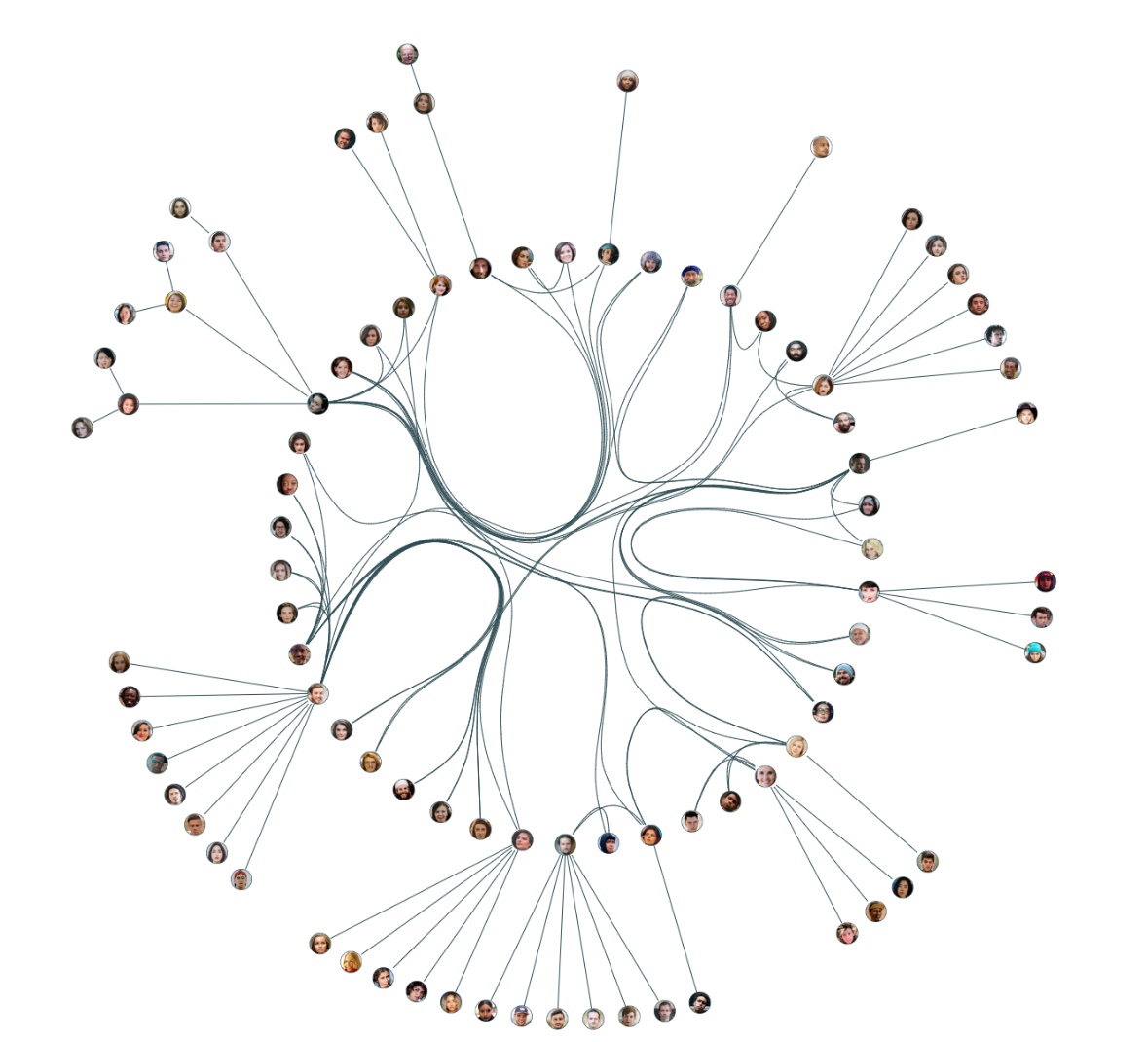
In social networks, individuals often form tight-knit groups based on interests or locations. The circular layout:
- Groups communities on separate rings.
- Makes "gatekeepers" (nodes connecting two circles) stand out.
- Provides a compact view of even very large populations.
Network infrastructure & security
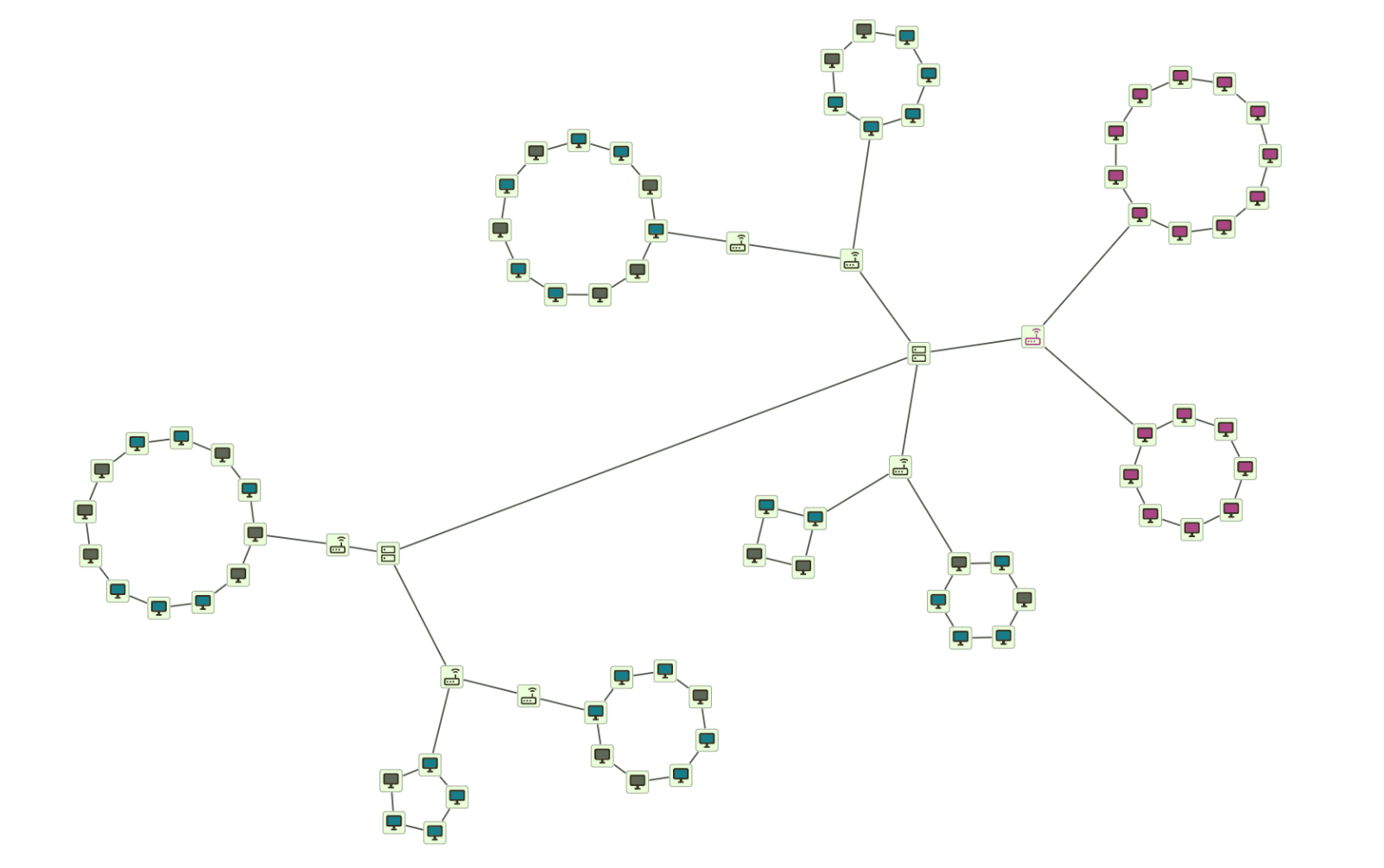
For IT networks, the circular layout can visualize subnets or VLANs:
- Subnets are represented as distinct circular clusters.
- Core switches can be placed to show how they link different segments.
- Vulnerability analysis becomes easier as isolated or highly connected clusters are identified.
Computational biology
In fields like genetics and epidemiology, understanding relationships is key. The circular layout is ideal for visualizing protein-protein interaction (PPI) networks, gene clusters, and pathogen transmission chains. It automatically groups related entities into functional modules or outbreak clusters, making complex biological systems easier to interpret.
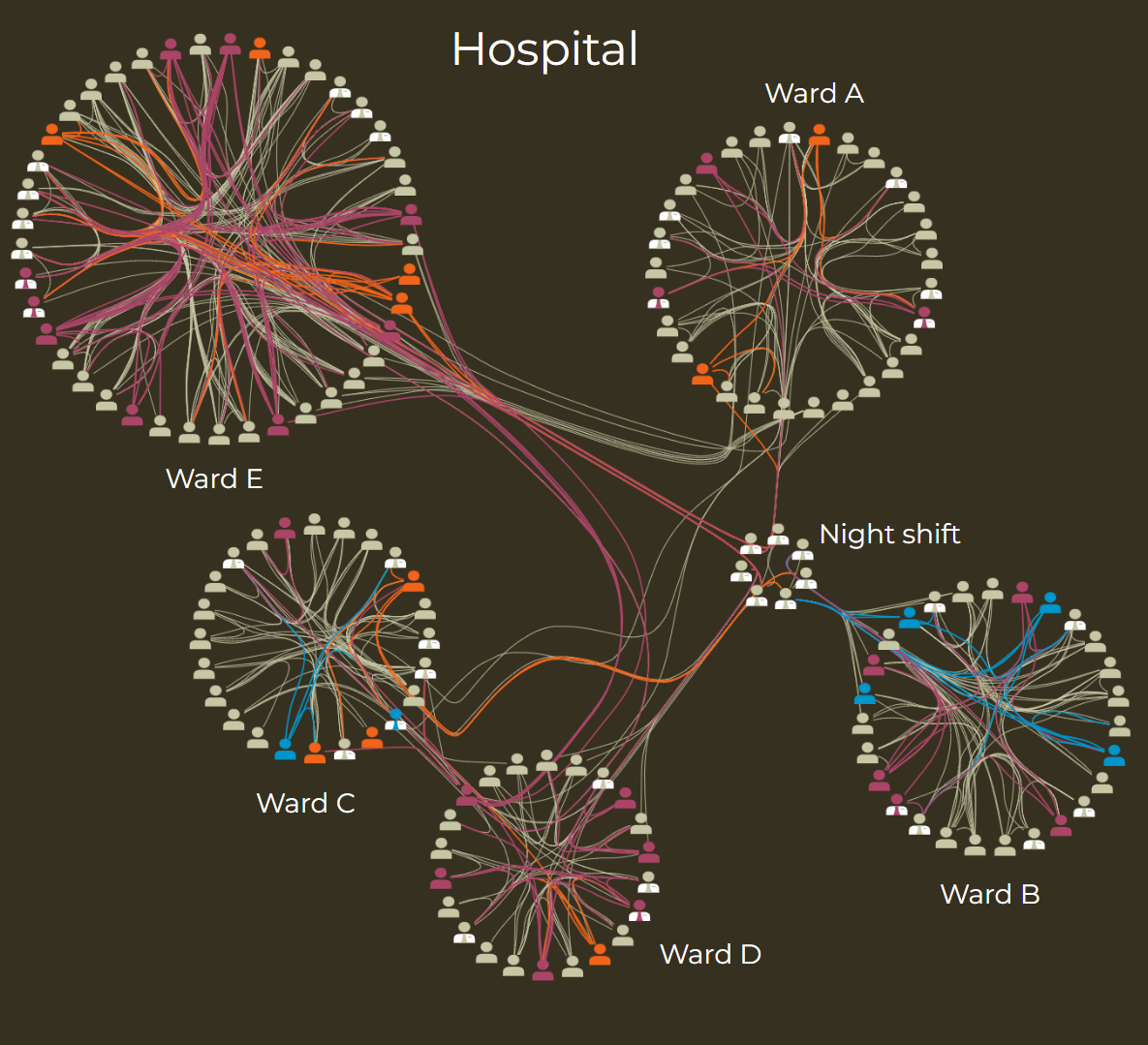
For instance, in a study on the hospital dissemination of Staphylococcus aureus, researchers from the University Pierre et Marie Curie in Paris used yFiles to visualize their data. The circular layout helped reveal distinct transmission clusters, supporting the analysis of how the pathogen spread.
When to choose the circular layout
Circular layouts are the ideal choice when your data has an inherent cluster or community structure. While other layouts might result in a "hairball" for highly connected networks, the circular layout reveals the underlying partitions by grouping nodes into distinct rings.
The table below compares circular layout applications to help you decide when it is the best choice for your network:
| Use case | Why circular layout? | Alternative layout | Best for |
|---|---|---|---|
| Social communities | Groups people by common interests or affiliations | Organic layout | Community detection, friendship circles |
| IT infrastructure | Visualizes subnets, VLANs, or server clusters | Hierarchical layout | Network segmentation, security zones |
| Biology & genetics | Shows protein complexes or gene clusters | Radial layout | Interaction maps, functional groupings |
| Fraud detection | Highlights isolated groups of suspicious activity | Organic layout | Identifying rings, collision analysis |
| Software engineering | Displays package dependencies and modules | Hierarchical layout | Architecture analysis, dependency clusters |

Core principles of the circular layout From partitioning to ring arrangement
The yFiles circular layout algorithm uses a sophisticated, multi-stage pipeline to transform complex graphs into clear visualizations. It intelligently decomposes the graph and applies specialized layout algorithms to each part before combining the results.
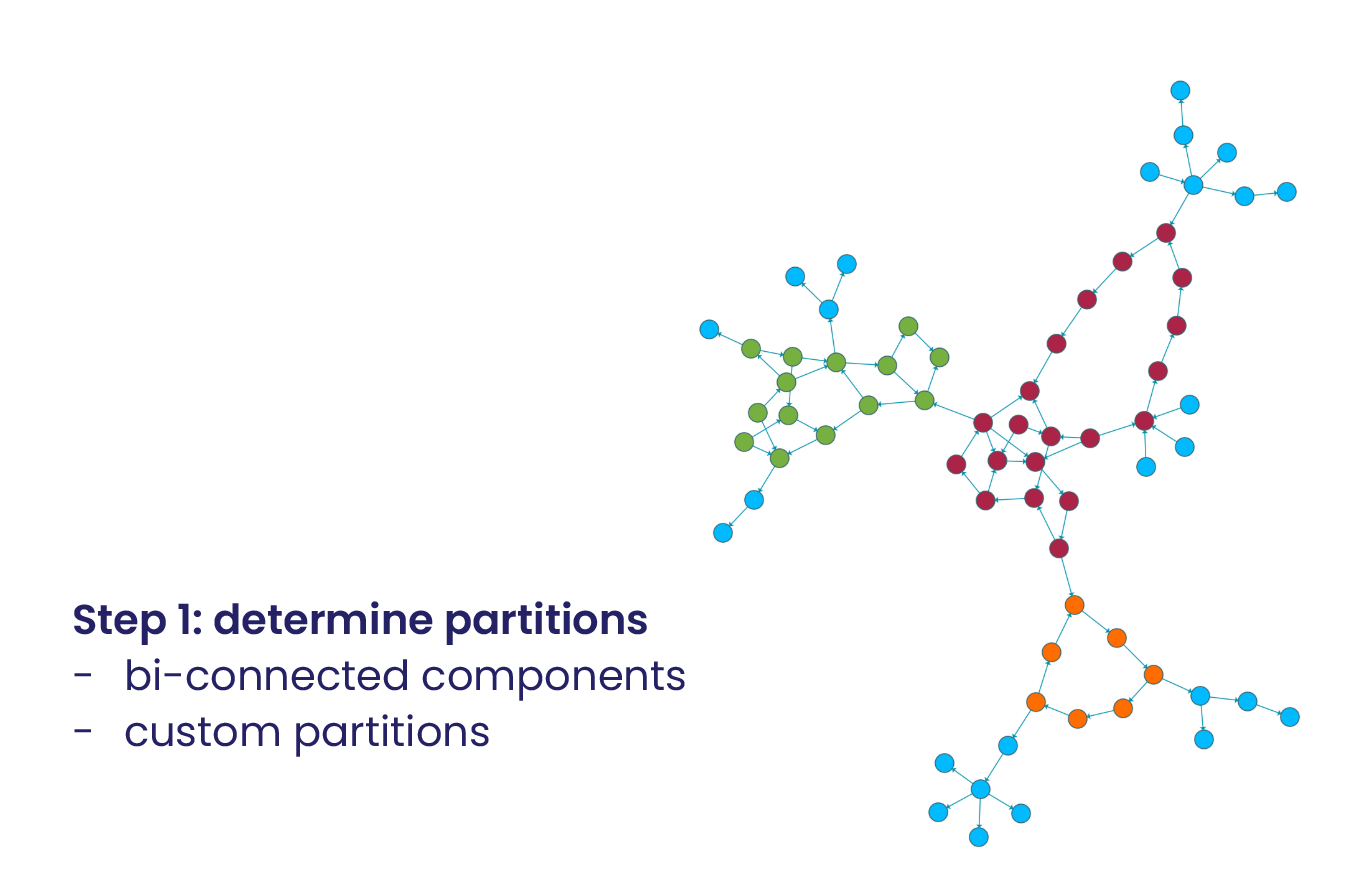
Step 1: Determine partitions
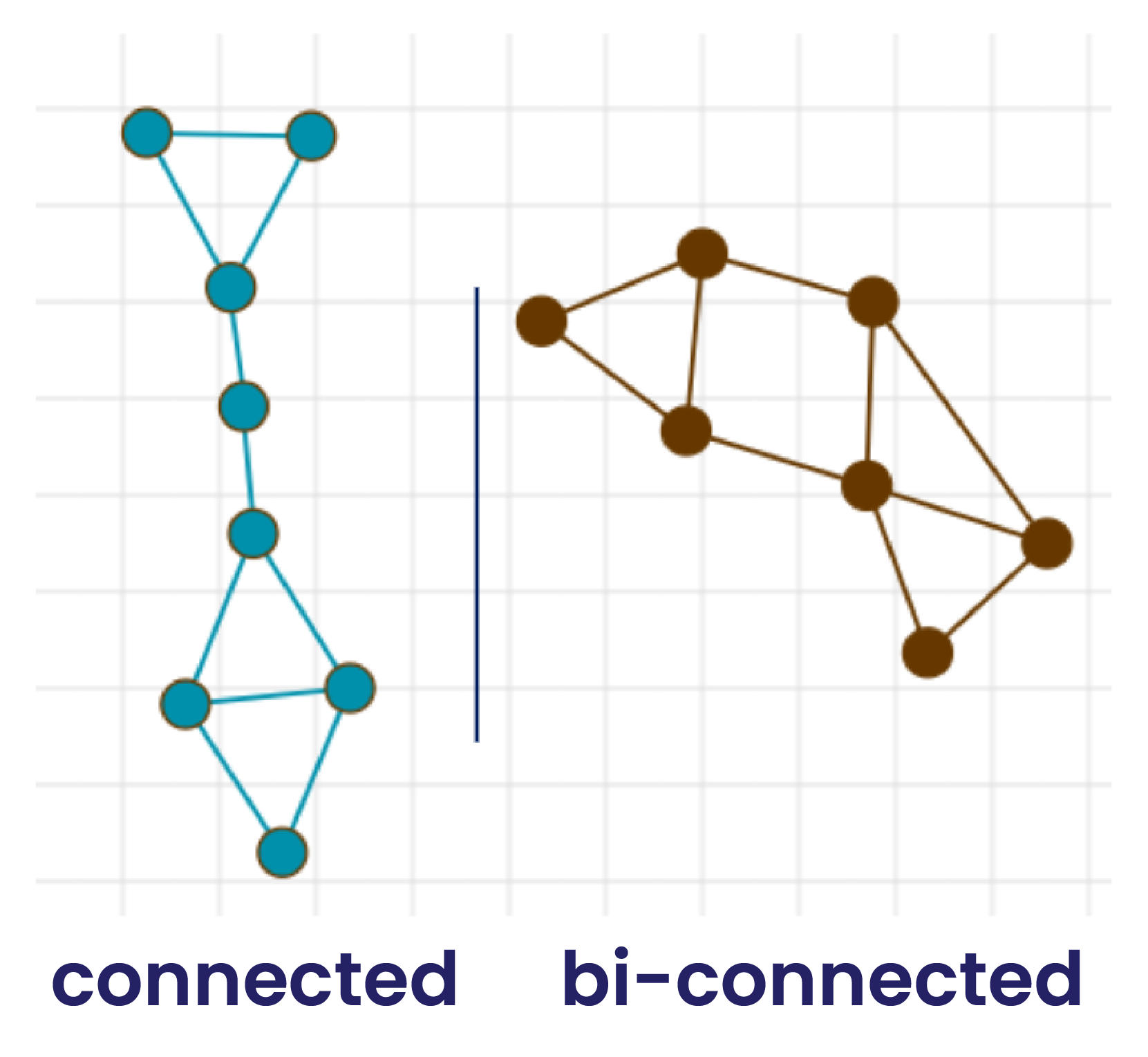
The first and most critical step is partitioning. The algorithm analyzes the network to identify core cyclical partitions (dense, highly-connected clusters) and any tree-like structures attached to them. yFiles offers several ways to define the partitions that will be arranged in circles:
- Automatic clustering: The algorithm uses graph-theoretical measures (like biconnected components) to find partitions.
- Custom partitioning: You can provide your own data (e.g., 'Department' or 'Location') to define the circles.
- Single cycle: Force all nodes onto a single large ring for specific aesthetic requirements.
Step 2: Arrange and combine
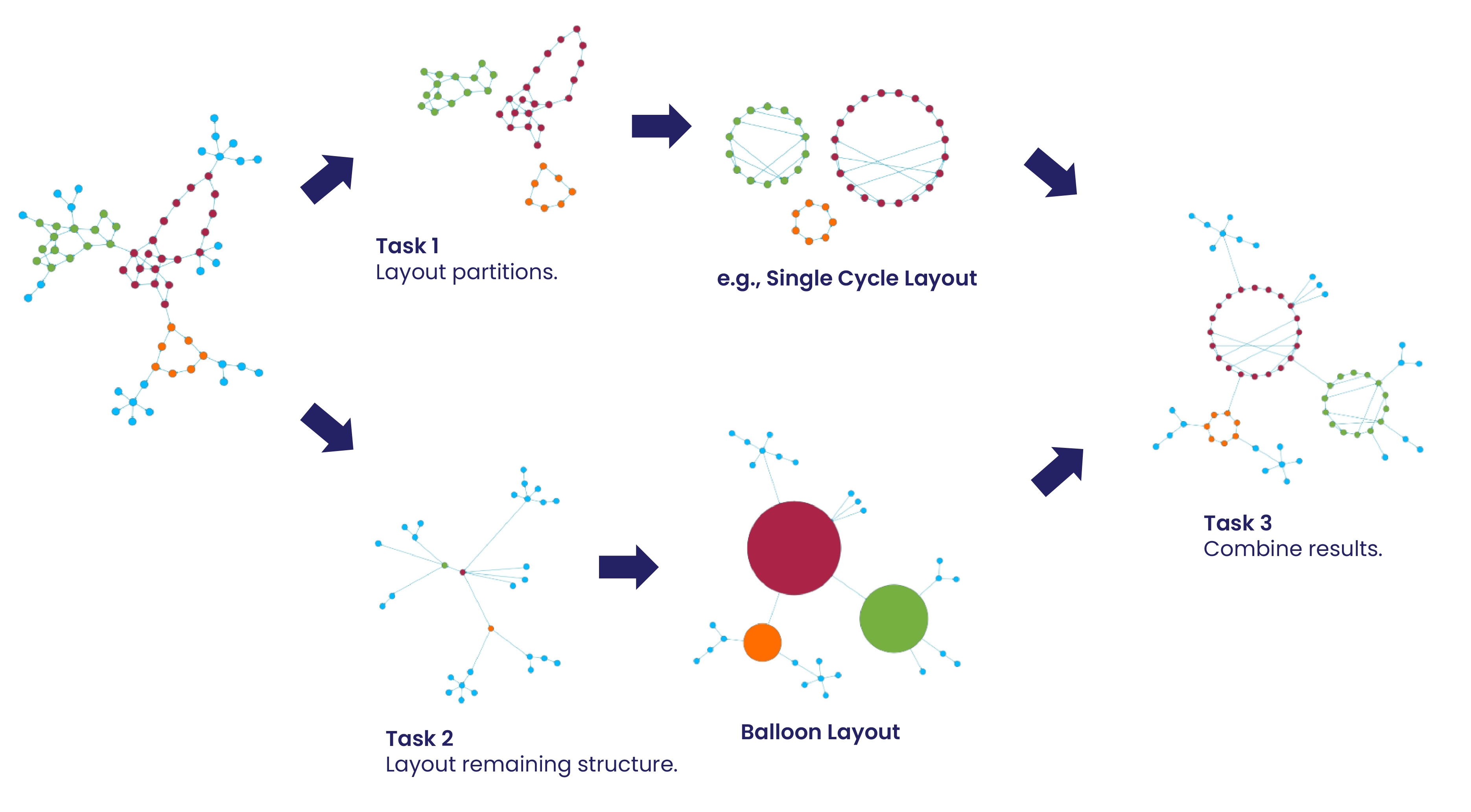
Once the partitions have been determined, the algorithm arranges them to form the overall structure of the layout. Each partition is placed on its own circle using the specialized Single Cycle Layout, which optimizes the order of nodes on the ring to reduce edge crossings—this includes both edges within the same circle and edges connecting different circles.
After all partitions have been laid out as circles, the algorithm builds a tree structure connecting these rings according to the topology found in your network. This "tree of circles," which may represent the main structure of your graph, is then arranged using the Radial Tree Layout (previously known as Balloon Layout). This ensures that the circles are positioned clearly relative to one another, and that any tree-like appendages or outliers connected to the circles are incorporated in a natural, readable hierarchy.
By combining Single Cycle Layout for each partition and Radial Tree Layout for the global arrangement, the result is a unified visualization that captures both the core clusters and any connective structures between them.
Radius control
Adjust how large each circle should be, either automatically based on node count or with fixed values.
Edge routing
Choose between straight lines, curved arcs, or bundled edges.
Label placement
Automatically place labels outside the rings or oriented towards the center to save space.
Concepts recap
| Concept | Meaning |
|---|---|
| Partitioning strategy | Method for grouping nodes into clusters, which can be automatic (e.g., biconnected components) or user-defined. |
| Node ordering | Optimizing the sequence of nodes on each circle to minimize edge crossings and improve readability. |
| Hybrid layout | Combining the “Single Cycle Layout” for core clusters with the “Radial Tree Layout” for attached tree-like structures. |
| Global positioning | Arranging the different circles relative to each other, often placing highly connected clusters closer together. |
| Edge routing | Defining the path of edges, for example, through the circle's interior or around its exterior. |
| Radius control | Adjusting the size of each circle, either automatically based on node count or with fixed values. |
Watch the full webinar episode
Watch the full episode below to gain a comprehensive understanding of circular layouts in yFiles. Dr. Benjamin Niedermann walks you through the core concepts and provides practical demonstrations.
Explore more resources:

Watch the full episode below to gain a comprehensive understanding of circular layouts in yFiles. Dr. Benjamin Niedermann walks you through the core concepts and provides practical demonstrations.
Explore more resources:
Interactive circular layout demos
Discover a selection of interactive demos showcasing different circular layout features in yFiles. Explore how various layout options help visualize complex structured data clearly and intuitively.


Routing styles
The visual appeal of a circular layout depends heavily on how edges are routed. yFiles supports interior and exterior routing:
Interior
Exterior
Mixed

Interior edge routing

Exterior edge routing

Mixed edge routing

Step-by-step guide How to create a circular layout with yFiles
Creating a circular graph layout with yFiles is a straightforward process:
1. Create the network from business data
2. Make information visible
3. Customize clustering and ring arrangement
CircularLayoutData to control how nodes are grouped onto
rings. Optionally adjust node spacing or minimum ring radius to better suit your data.
4. Apply different layout options

Interactive circular layout playground
The Playground lets you experiment with yFiles' circular layout interactively. Adjust clustering strategies, modify ring spacing, and explore different edge routing styles to see results instantly in your browser.
  graph.nodeDefaults.size = [70, 70];
  graph.nodeDefaults.style = new ShapeNodeStyle({
    shape: ShapeNodeShape.ELLIPSE,
    cssClass: "node",
  });

  graph.nodeDefaults.labels.style = new LabelStyle({
    shape: LabelShape.PILL,
    backgroundFill: "white",
    backgroundStroke: "1px solid #6A8293",
    font: "15px poppins",
    textFill: "#6A8293",
  });


  graph.edgeDefaults.labels.style = new LabelStyle({
    shape: LabelShape.PILL,
    backgroundFill: "#6A8293",
    backgroundStroke: "1px solid white",
    font: "15px poppins",
    textFill: "white",
  });
  graphComponent.fitGraphBounds()

Why use yFiles' circular layout? Unique capabilities for circular layouts you won't find in other SDKs.
While many software development kits (SDKs) can generate circular layouts, only yFiles provides these game-changing advantages, like edge bundling, and custom partitions:
Edge bundling

Edge bundling of the Circular Layout
Edge routing (interior/exterior/mixed)
Interior edge routing
Exterior edge routing
Mixed edge routing
Labeling
Node types
Layout from sketch
Multiple styles
Custom partitions
The yFiles circular layout is the ultimate tool for turning "hairball" graphs into partitioned, readable maps. It scales effortlessly from small teams to massive infrastructure networks.
All of this is powered by the yFiles layout engine, ensuring lightning-fast calculations and high-quality results in every browser and framework.
Frequently Asked Questions
I would like to use the Circular Layout to arrange my data on a single cycle. How does yFiles determine the radius?
Can I specify the minimal distances the yFiles Circular Layout leaves between nodes?
I have a large graph that I would like to layout with the Circular Layout of yFiles. Can I influence the compactness of the layout?
Yes, there are different possibilities. A simple possibility is for example to reduce the minimum node distance. Further, you can configure the Circular Layout's backboneLayout such that it places the nodes more compact, e.g., by placing children interleaved. Moreover, you can use the compact disk layout instead of the single cycle layout for your partitions, which substantially reduces the size of the partitions.
Do I need to define the edges that the yFiles Circular Layout should route outside of a partition myself?
Recap
Circular layout
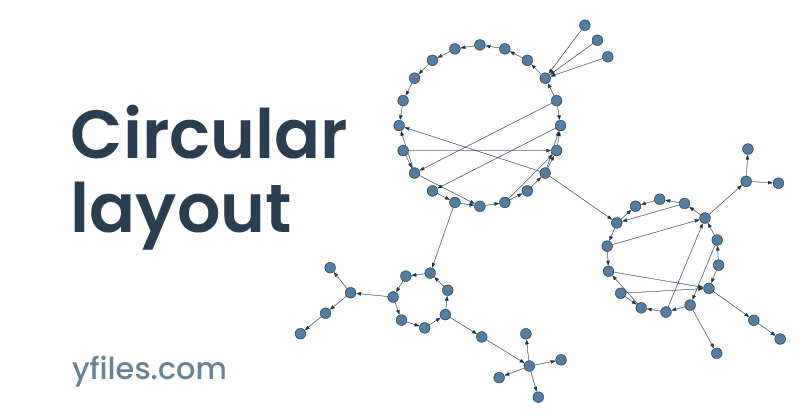
Circular layout is a graph visualization technique that reveals the cluster structure of a network by partitioning nodes into groups and arranging them on distinct circles or rings. This approach is highly effective for non-hierarchical networks, such as social communities, IT infrastructure segments, and protein-protein interaction maps, where highlighting "who belongs with whom" is the primary goal.
The yFiles SDK provides a state-of-the-art circular layout algorithm that automatically identifies natural clusters using advanced graph-theoretical partitioning. As discussed in the sections about circular layout and core principles, the algorithm minimizes edge crossings within rings and optimizes the global arrangement of clusters to highlight inter-group connections. Developers can choose between various clustering strategies, customize ring radii, and select between interior or exterior edge routing styles to ensure maximum readability for dense networks. Check out the Key Benefits to see why yFiles stands out for partitioned visualizations.
For implementation details and inspiration, explore our use cases and the step-by-step guide. You can also experience the layout's capabilities firsthand in the Circular Layout Demo.
Related content
Choose your next steps
Get connected
Connect with our Customer Success Team regarding your ideas or projects.

Download yFiles
Try yFiles free of charge.