Make your AI coding assistant create perfect diagram visualizations yFiles AI Tools
AI assistants are great — but without the right context they often cannot help with the creation of interactive, high-quality diagrams. The yFiles AI tools fix this by giving your agent up-to-date, accurate knowledge about the yFiles for HTML SDK. It uses the open-source Model Context Protocol (MCP) and Skills to provide your AI agent efficient tools to use the yFiles API, documentation and demo code.
With the tools the AI assistant has deep knowledge of yFiles concepts, patterns, and common development scenarios, making it an invaluable companion for both beginners and experienced developers.
Use this prompt and paste it into your agent to get started:

Benefits of using the yFiles AI Tools
- Accurate and up-to-date information about the yFiles for HTML SDK
- Scaffolding new diagramming applications
- Code suggestions that follow best practices
- Easing the learning curve of the yFiles SDK
- Compatible with AI agents via the Model Context Protocol (MCP) and Skills


Thank you!
Your message has been sent.
We'll get back to you as soon as possible.
Works with your favorite AI agent
We have successfully tested the AI tools with the following AI agents. Thanks to the standards, it should work with any agent that supports MCP servers and Skills.








In our experience, coding-focused LLMs like Claude Sonnet work best for big scaffolding tasks where a full project setup is needed. OpenAI's GPT models have also been a solid choice for complex scenarios, while smaller models often shine when it comes to more specific, targeted prompts or questions.
With the help of the tools, even smaller or local models can work with the yFiles library and create impressive results quickly without doing hundreds of round trips and guessing.
Use cases
With the yFiles AI tools, your AI assistant doesn't just explain how things work — it can directly implement features, scaffold projects, and answer API questions with real code. This lowers the learning curve for newcomers and speeds up everyday development for experienced users alike.
Getting started as a yFiles newcomer
yFiles for HTML provides outstanding documentation and more than 300 demos that illustrate almost every feature and scenario. These are invaluable learning and reference resources.
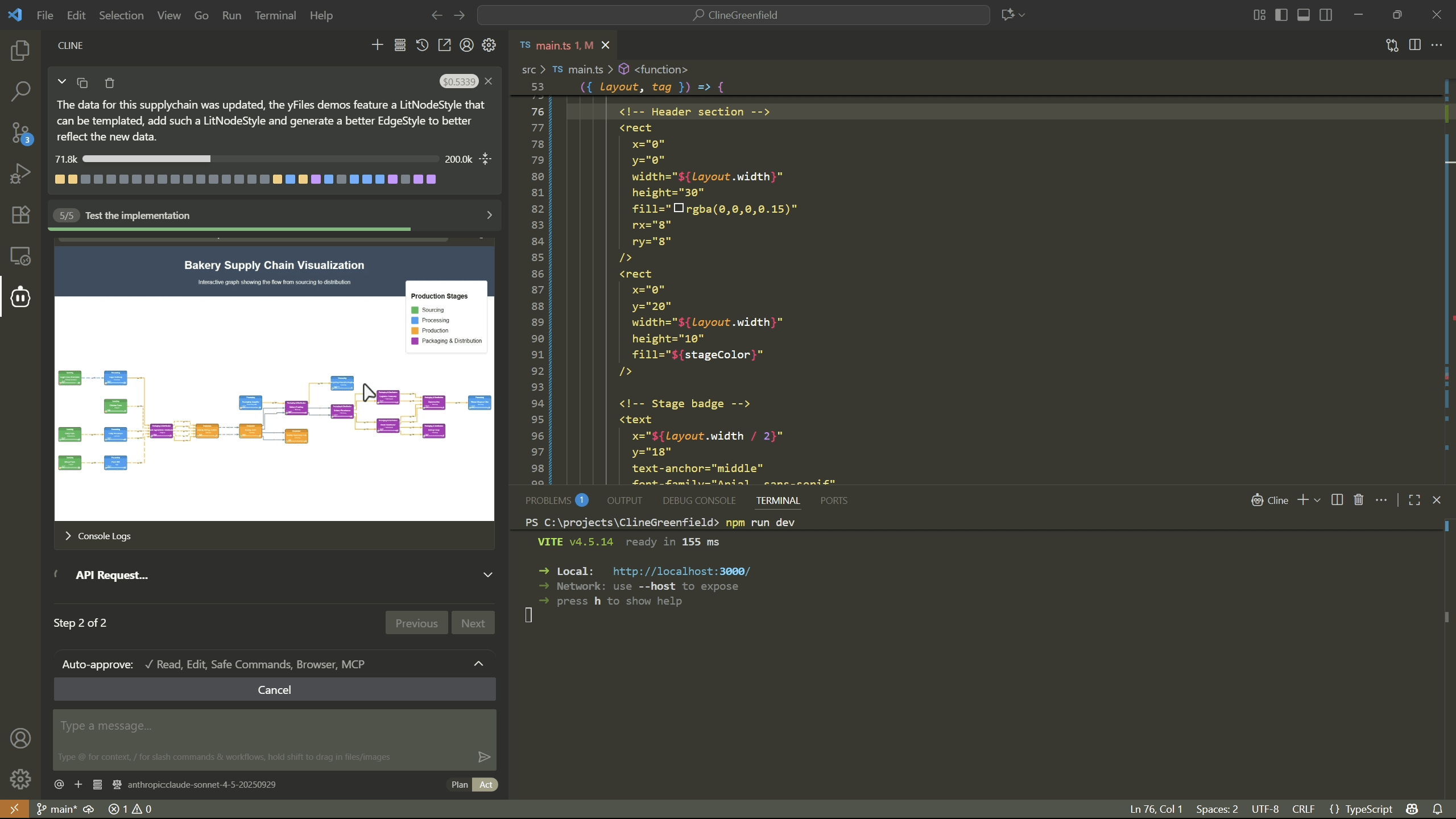
For newcomers, however, combining multiple concepts from the documentation into a working first project can feel overwhelming. The yFiles MCP server and Skills lower this barrier by letting the AI agent set up a functioning project directly, so you can see results right away and learn by example. Not only can you do one-shot prompting, but use a sequence of prompts where each one adds and combines more features.
Example prompt
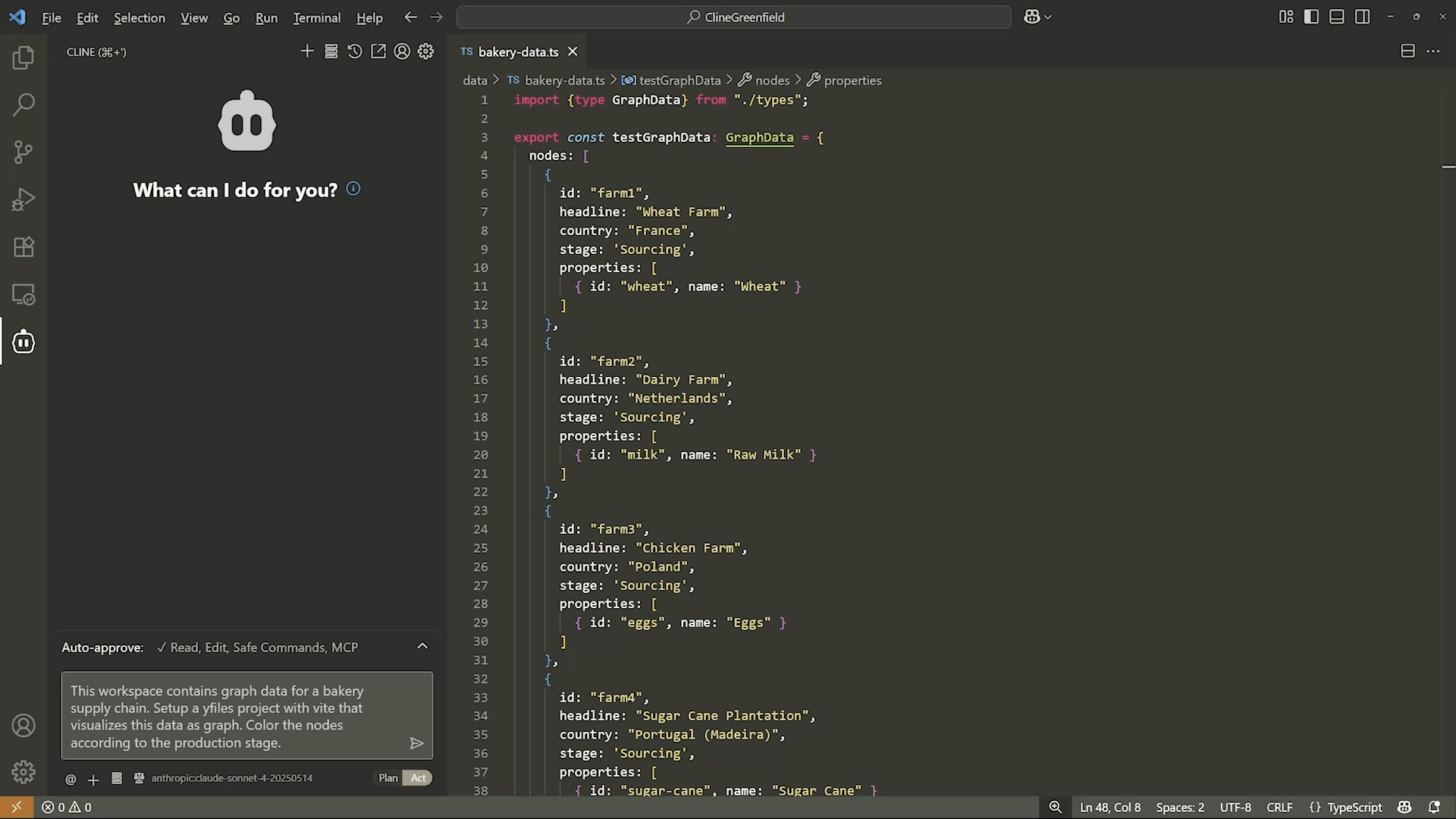
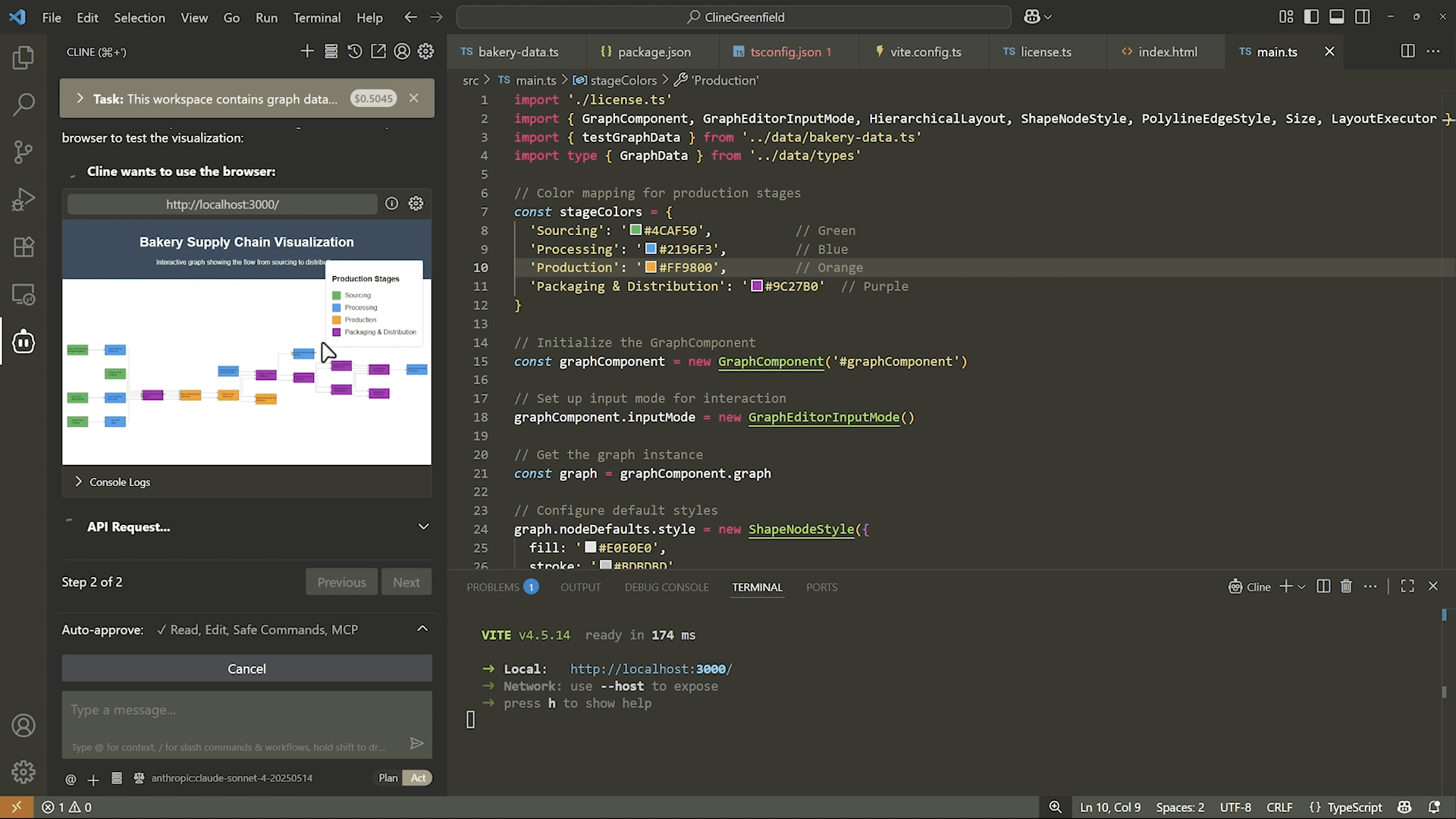
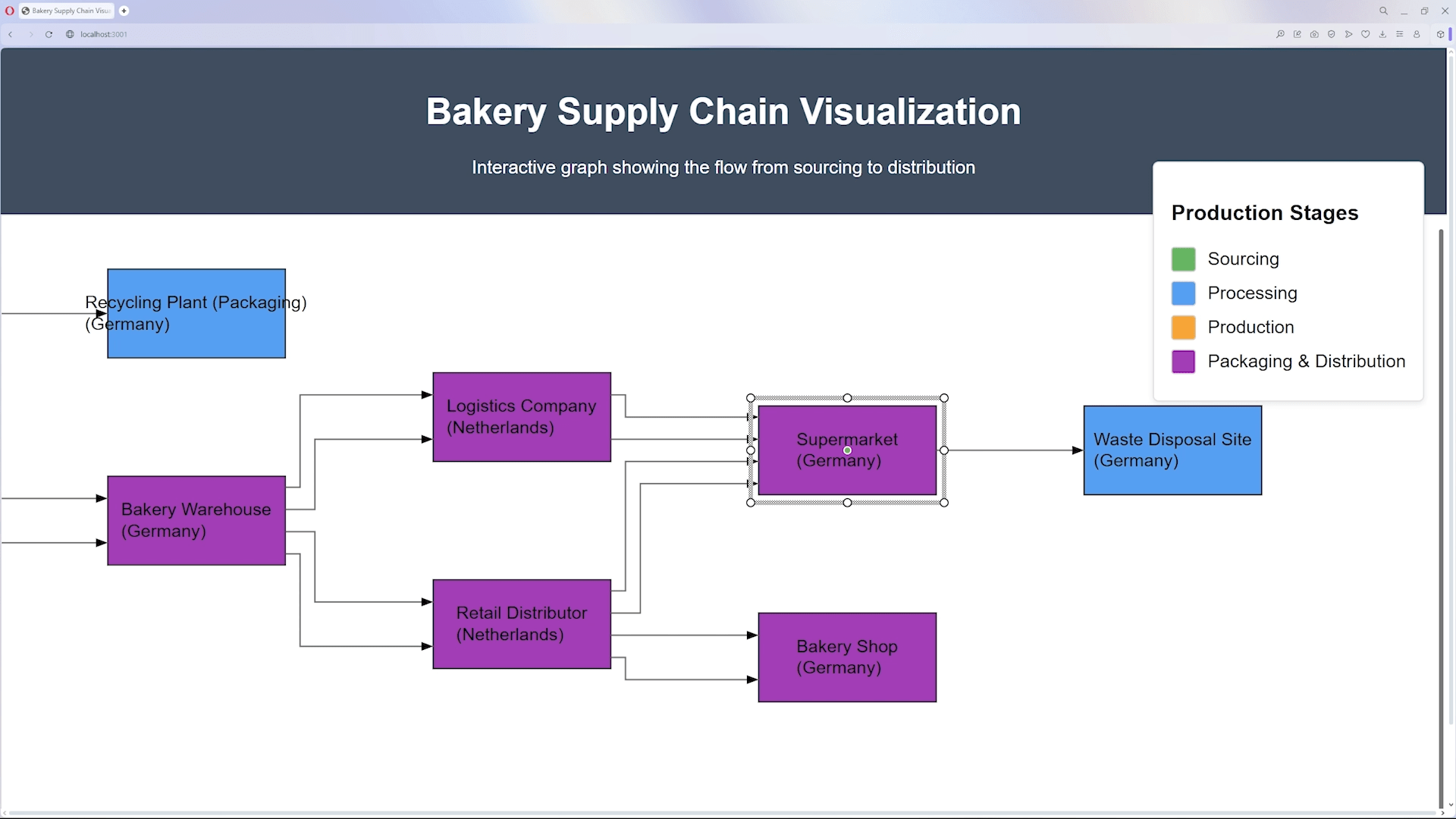
Scaffolding new yFiles applications
When you're ready to start fresh or try out new ideas, the yFiles AI tools can scaffold a project for you. They help with generating the boilerplate, initializing the GraphComponent, wiring up interactions, and embedding common patterns—saving time on repetitive setup tasks so you can focus on your actual goals.
Example prompts for scaffolding
Accelerating development in your existing projects
Once your application is up and running, the real work begins: extending features, customizing styles, refining layouts, and improving performance. With its rich API, yFiles gives you full control over all of these aspects — but finding the right combination of classes, methods, and demos can sometimes be time-consuming.
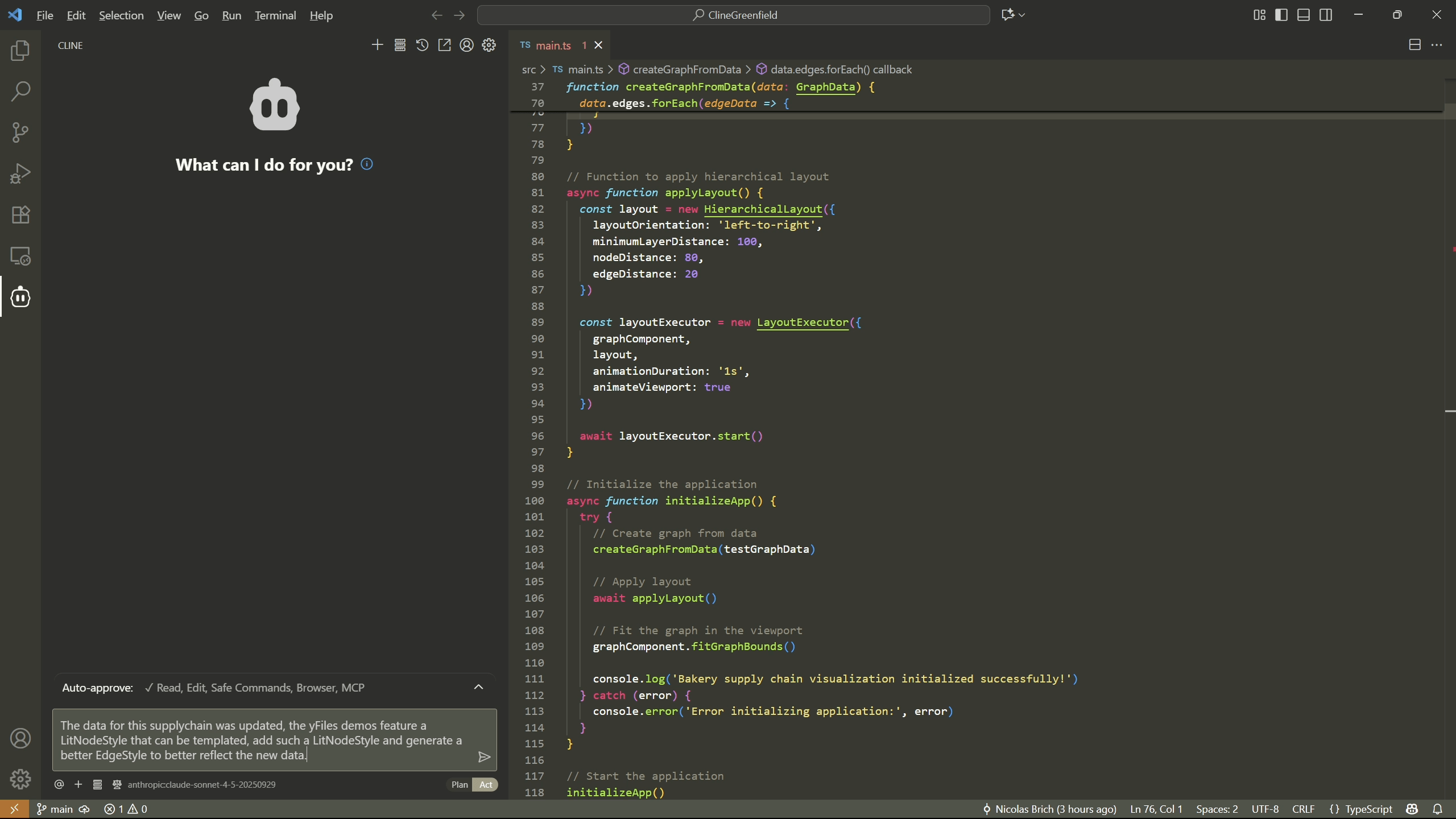
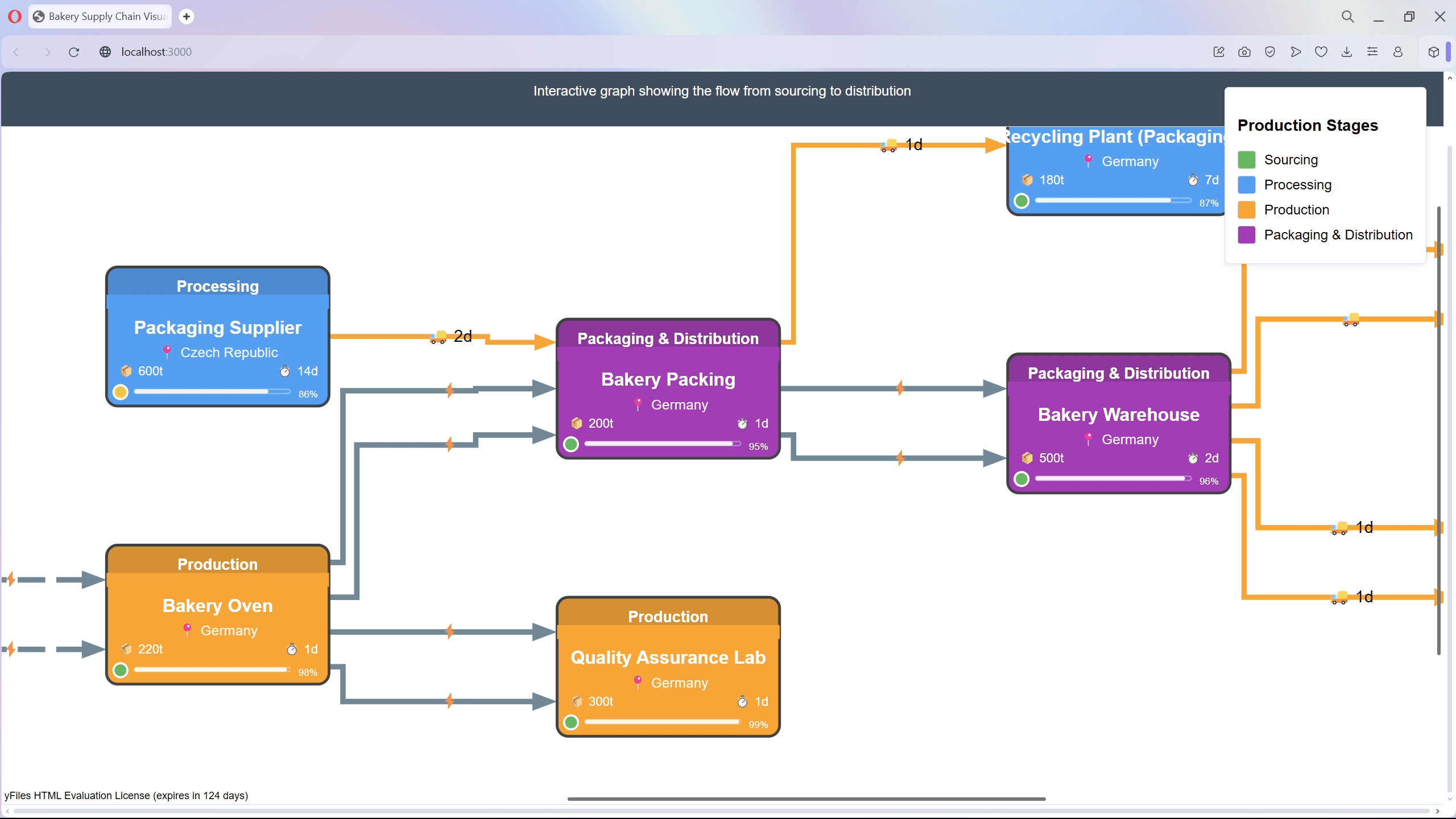
The yFiles MCP server and Skills, when paired with your AI agent, help you move faster by implementing concrete code changes directly in your project context. Instead of spending time searching for the right demo or piecing things together manually, you can simply describe what you want to achieve, and your AI assistant generates the necessary code using the official yFiles APIs and best practices.
This dramatically speeds up iterative development, helps you avoid common mistakes, and shortens the time from idea to working feature.
Example prompt for existing projects
Example prompts for iterative improvements
Answering yFiles API questions
The yFiles for HTML SDK is vast and powerful, offering hundreds of classes, interfaces, and specialized layout and visualization features. Even experienced developers can't (and shouldn't) memorize the entire API surface. Traditionally, when a question arises, you'd search through the documentation or look for the right demo — both excellent resources, but sometimes too slow when you're in the middle of coding.
With the yFiles MCP server, your AI agent can directly answer API questions and implement code solutions immediately in your development environment. Instead of switching contexts to look up a class or an event, you simply ask: "How do I listen for when the user clicks on a label?" or "Which layout should I use for layered data?" — and your assistant can show you, explain it, and inject working code into your project.
This turns your AI agent into an interactive API companion: one that's always up-to-date, understands the entire yFiles SDK, and lowers the learning curve by translating abstract concepts into concrete, ready-to-use code.
Watch the recorded webinar
See the full walkthrough of building an interactive diagram from scratch using AI.
This
session covers practical techniques, and real examples.
How to get started
The yFiles AI tools are powered by the yFiles Dev Suite — a development hub for working with yFiles for HTML. It's a CLI tool, meant to be used by expert developers and AI agents alike, with a lot of different functionality built in:
- Sign up and log in to the yWorks Customer and Evaluation Center
- Request and download a yFiles for HTML evaluation version package
- Launch a browser UI to explore the yFiles demos and documentation, locally
- Install instructions for local coding agents to work with yFiles
- Install agent Skills for efficiently working with the APIs
- Serve as an MCP server for AIs to connect to and explore the API
- Search for a matching demo and scaffold it into a local directory
To make an AI agent aware of the yFiles AI tools, you can point it to the yFiles dev suite CLI's integrated help.
Alternatively, ask it to go to our agent welcome page and follow the instructions.
Depending on the AI agent, IDE, or development harness you use, the configuration for MCP servers and Skills may vary. If the agent cannot help, always consult your harness' documentation for the expected configuration.
See an example of how the yFiles AI tools can be installed into your agent.


Frequently Asked Questions
Which AI agents does the yFiles mcp-server work with?
Where can I get the yFiles mcp-server?
The yFiles mcp-server is included in the yFiles Dev Suite. It can be installed and connected to your preferred AI agent that supports MCP.
How much does the yFiles mcp-server cost?
Is there a CLI to use for agents?
The yFiles Dev Suite provides a CLI interface for agents to manage your evaluation and the various AI tools likes skills and the mcp server.
Are there agent skills available for yFiles?
The yFiles Dev Suite provides an mcp-server and agent skills for working with yFiles for HTML.
How accurate and fast is the yFiles mcp-server when used with an AI agent?
The performance and quality of the yFiles mcp-server strongly depend on the AI agent and the underlying large language model (LLM) you are using. While the mcp-server always provides structured, up‑to‑date access to the yFiles SDK, the quality of the generated code and responses varies with the capabilities of the connected AI agent and model version.
How does the yFiles mcp-server help beginners?
How does the yFiles mcp-server help with scaffolding new projects?
How does the yFiles mcp-server support existing projects?
Recap
yFiles AI Tools
The yFiles AI Tools equip your AI coding assistant with up-to-date and reliable knowledge of the yFiles for HTML SDK, enabling it to deliver accurate code suggestions and use cases. By leveraging the Model Context Protocol (MCP) and Skills, it integrates seamlessly with popular AI agents to streamline tasks such as project scaffolding, feature implementation, API question answering, and many other use cases. The getting started guide explains with the tools for a smooth setup. These capabilities help both newcomers and experts efficiently build, customize, and maintain yFiles-based applications.
Related content
Got questions about
the yFiles AI tools?

Nicolas Brich
Senior Software Developer
Email: hello@yworks.com
Phone: +49 7071 9709050
11 reasons why web developers choose yFiles, the superior diagramming SDK
Choose your next steps
Get connected
Connect with our Customer Success Team regarding your ideas or projects.

Download yFiles
Try yFiles free of charge.